PostgreSQL Installation & Setup on macOS
Introduction to PostgreSQL
What is PostgreSQL?
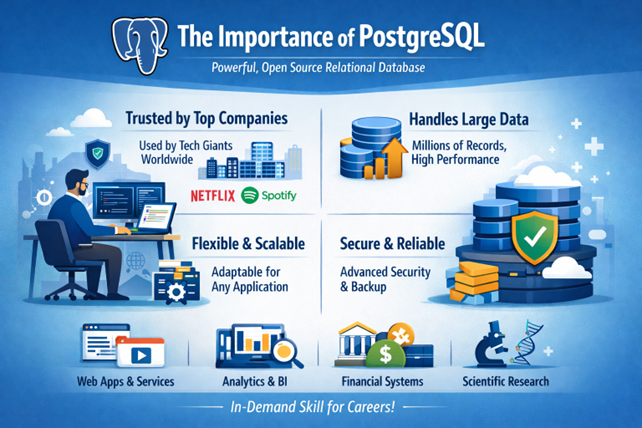
PostgreSQL is a powerful, open-source relational database management system (RDBMS). It is widely used by startups, enterprises, and developers because it is reliable, scalable, and similarly follows SQL standards.
PostgreSQL supports:
● Structured data using tables
● Complex queries using SQL
● Transactions (ACID compliance)
● Indexes, views, triggers, and stored procedures
Because of these features, PostgreSQL is often used in real-world applications such as web apps, data analytics platforms, enterprise systems, and backend services.
Why learn PostgreSQL as a beginner?
For students and freshers, PostgreSQL is an excellent database to learn because:
● It is free and open source
● It is used in many companies
● It helps you understand core database concepts clearly
● It looks good on resumes and GitHub projects
By learning PostgreSQL, you also build a strong foundation for learning other databases like MySQL, Oracle, or SQL Server.
Basic Database Concepts
What is a Database?
A database is an organized collection of data that can be stored, managed, and retrieved efficiently.
Example:
● Student details (ID, Name, Course)
● Employee records
● Product and order information
What is a DBMS?
A Database Management System (DBMS) is software that allows users to:
● Create databases
● Insert and update data
● Query data using SQL
● Control access and security
PostgreSQL is a Relational DBMS (RDBMS).
Key PostgreSQL Terminology
● Database: A container that holds tables and data
● Table: Structure that stores data in rows and columns
● Row (Tuple): One record in a table
● Column (Attribute): One field in a table
● Role (User): A PostgreSQL user account
Understanding the difference between roles and databases is very important, especially on macOS.
Installing PostgreSQL on macOS
PostgreSQL can be installed on macOS in two common ways:
1. Using the Official Installer (GUI-based)
2. Using Homebrew (Terminal-based, developer-friendly)
Both methods are correct. Beginners can choose either based on comfort level.
Method 1: Installing PostgreSQL using Homebrew (Recommended)
Homebrew is a popular package manager for macOS that makes installing developer tools very easy.
Step 1: Install Homebrew (If Not Installed)
Open Terminal and run:
|
1 2 3 4 |
/bin/bash -c "$(curl -fsSL https://raw.githubusercontent.com/Homebrew/install/HEAD/install.sh)” Verify installation: brew --version |
Step 2: Install PostgreSQL using Homebrew
|
1 |
Run: brew install postgresql |
This command downloads and installs PostgreSQL automatically.
Step 3: Start PostgreSQL Service
brew services start PostgreSQL
Check status: brew services list
(In above video I already discussed the method 1)
Method 2: Installing PostgreSQL using Official Installer
System Requirements
● macOS (Intel or Apple Silicon)
● Internet connection
● Administrator access
Step 1: Download PostgreSQL Installer
1. Open your browser
2. Visit the official PostgreSQL website
3. Go to Downloads → macOS
4. Download the installer (Enterprise DB)
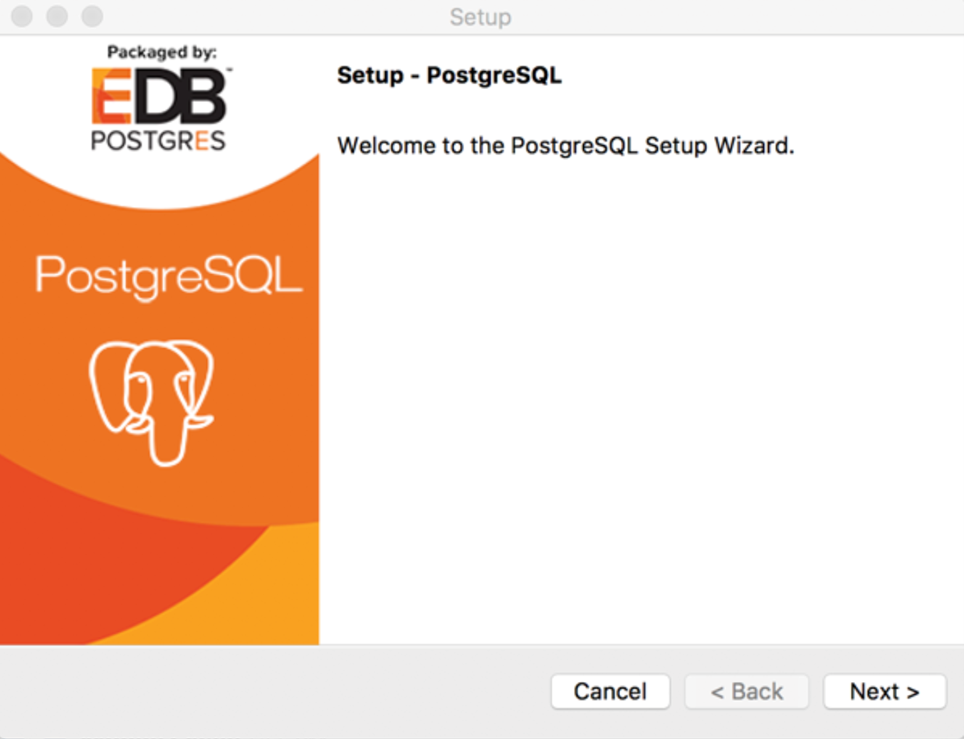
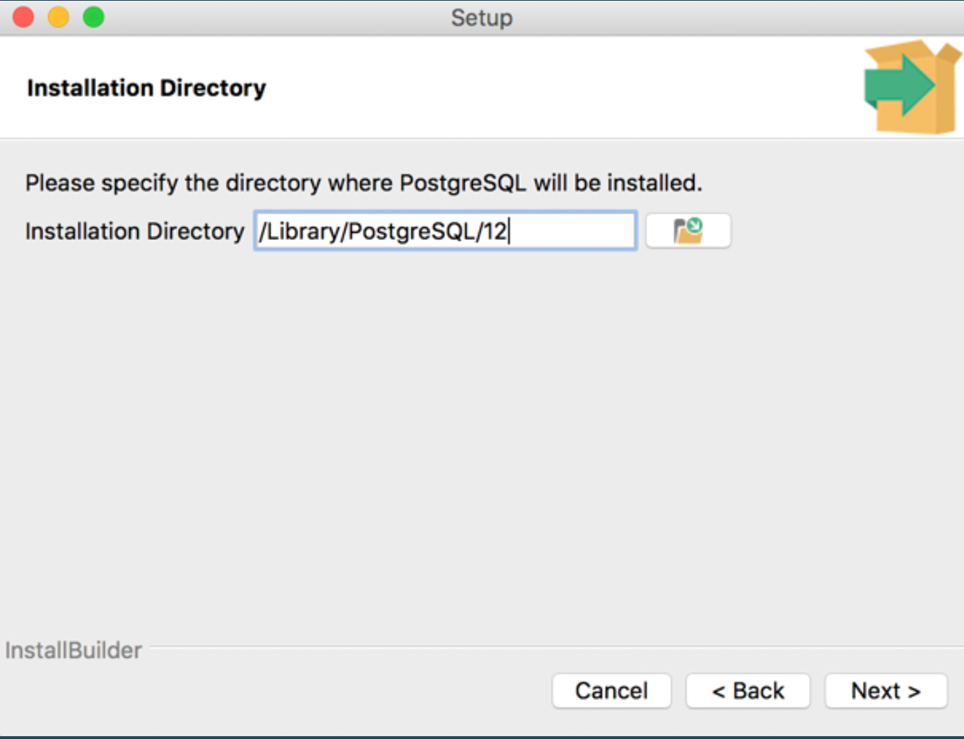
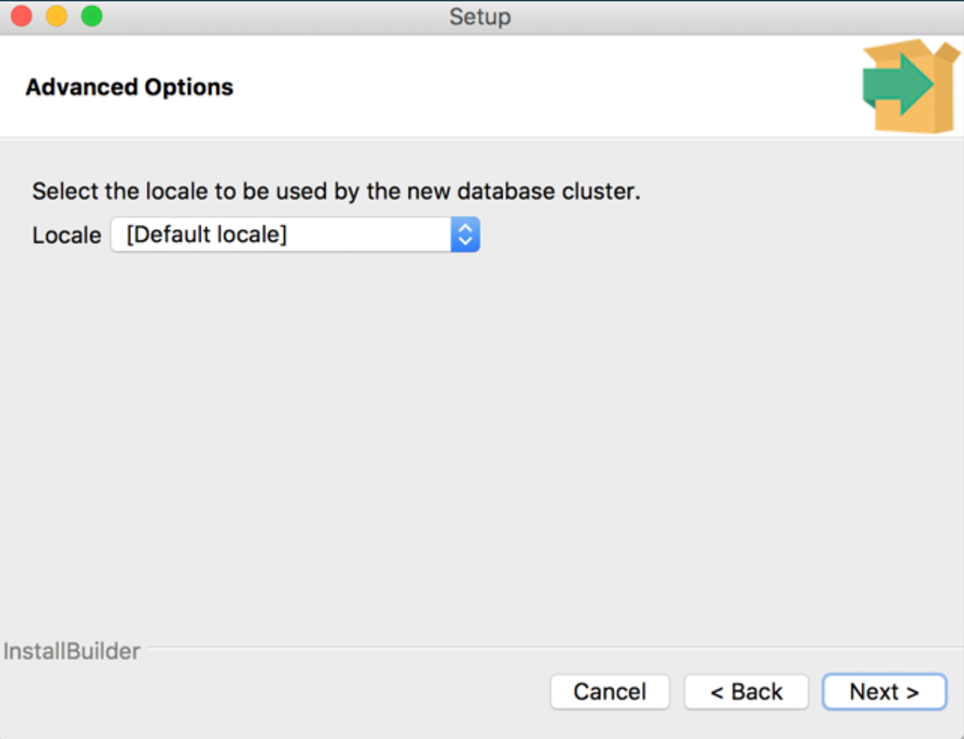
Step 2: Run the Installer
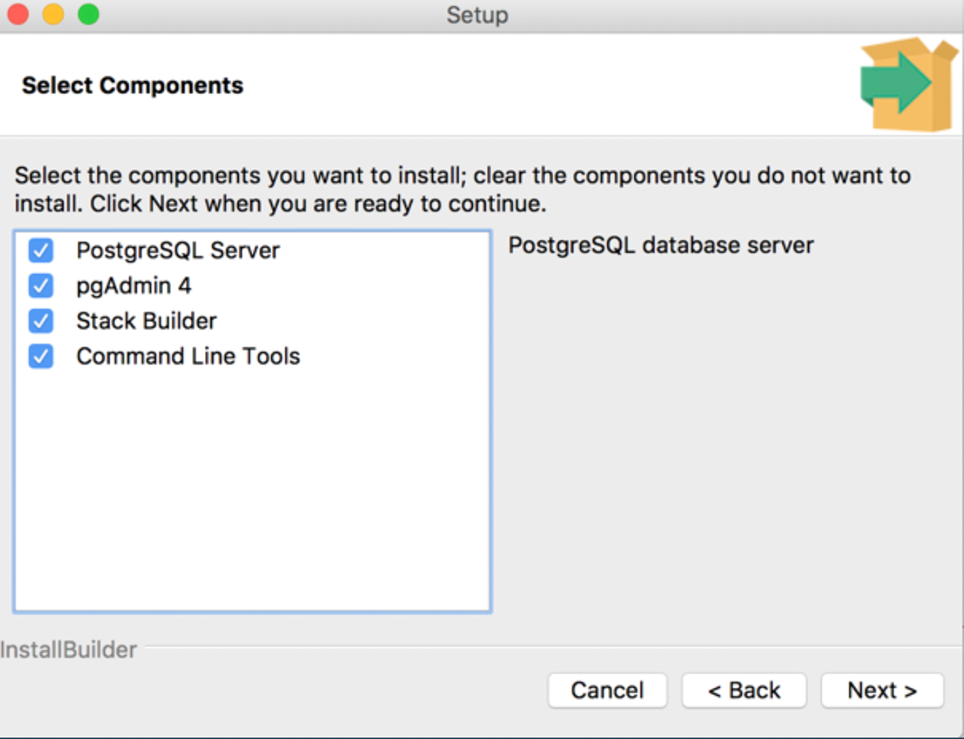
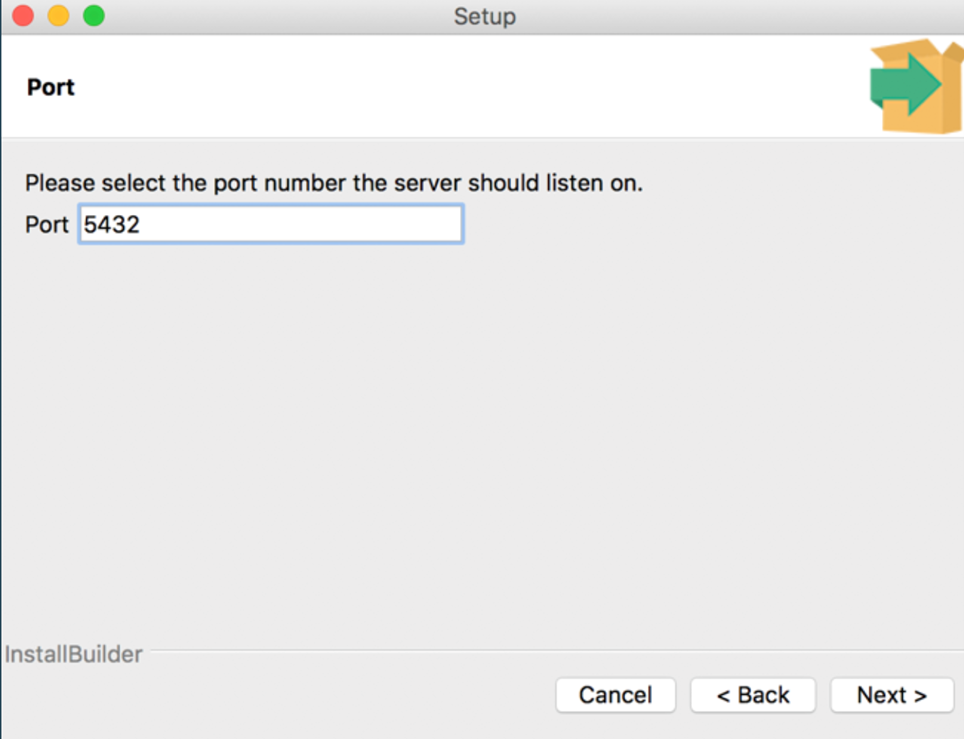
During installation:
● Choose PostgreSQL version (latest stable)
● Set a strong password (remember this)
● Keep the default port: 5432
● Select all components (PostgreSQL Server, pgAdmin, Command Line Tools)
This will install PostgreSQL locally on your Mac.
Step 3: Stack Builder (Important Note)
After installation, Stack Builder may open.
For beginners:
● You do not need to install anything from Stack Builder
● You can safely close or skip it
Stack Builder is used only for advanced extensions like GIS or enterprise drivers.
Initial Setup and Common Errors on macOS
Understanding macOS Default Behavior
On macOS:
● PostgreSQL automatically creates a role with your macOS username
● It does not always create a database with the same name
This causes common errors like:
● role does not exist
● database does not exist
● These errors are normal for beginners.
Step 1: Check Your macOS Username
Open Terminal and run:
|
1 |
whoami |
This username is your default PostgreSQL role.
Step 2: Connect to PostgreSQL Correctly
If your database does not exist yet, connect to the default database:
|
1 2 3 |
psql -U your_username -d postgres If you see a prompt like: postgres=# (Your connection is successful) |
Step 3: Create Your Own Database
Inside PostgreSQL:
|
1 2 3 4 5 |
CREATE DATABASE your_username; Exit: \q Now you can simply run: psql |
Verifying Installation and Next Steps
Verify PostgreSQL Installation
Run the following commands:
|
1 2 |
psql --version psql |
If PostgreSQL opens without errors, your setup is complete.
Tools Installed with PostgreSQL
● psql: Command-line SQL interface
● pgAdmin: Graphical UI for database management
Beginners can use pgAdmin to visually explore databases while learning SQL.
Conclusion
PostgreSQL on macOS may feel confusing at first, but once installed correctly, it becomes a powerful learning tool. By understanding roles, databases, and basic SQL, beginners can confidently move toward real-world projects and career opportunities.
This guide is designed to give you a clear and beginner-friendly foundation to start your PostgreSQL journey.
Author : Khaja Shaik
LinkedIn : http://linkedin.com/in/shaik-khajask
Thank you for giving your valuable time to read the above information. Please click here to subscribe for further updates.
KTExperts is always active on social media platforms.
Facebook : https://www.facebook.com/ktexperts
LinkedIn : https://www.linkedin.com/company/ktexperts/
Twitter : https://twitter.com/ktexpertsadmin
YouTube : https://www.youtube.com/c/ktexperts
Instagram : https://www.instagram.com/knowledgesharingplatform
Note: Please test scripts in Non Prod before trying in Production.

 Loading...